WebXR hit testing: how to place objects on real surfaces
What a WebXR hit test is, how to request one, how to read its result, and a working reticle in React Three Fiber that places objects on floors and tables.
Michal Takáč 6 min read
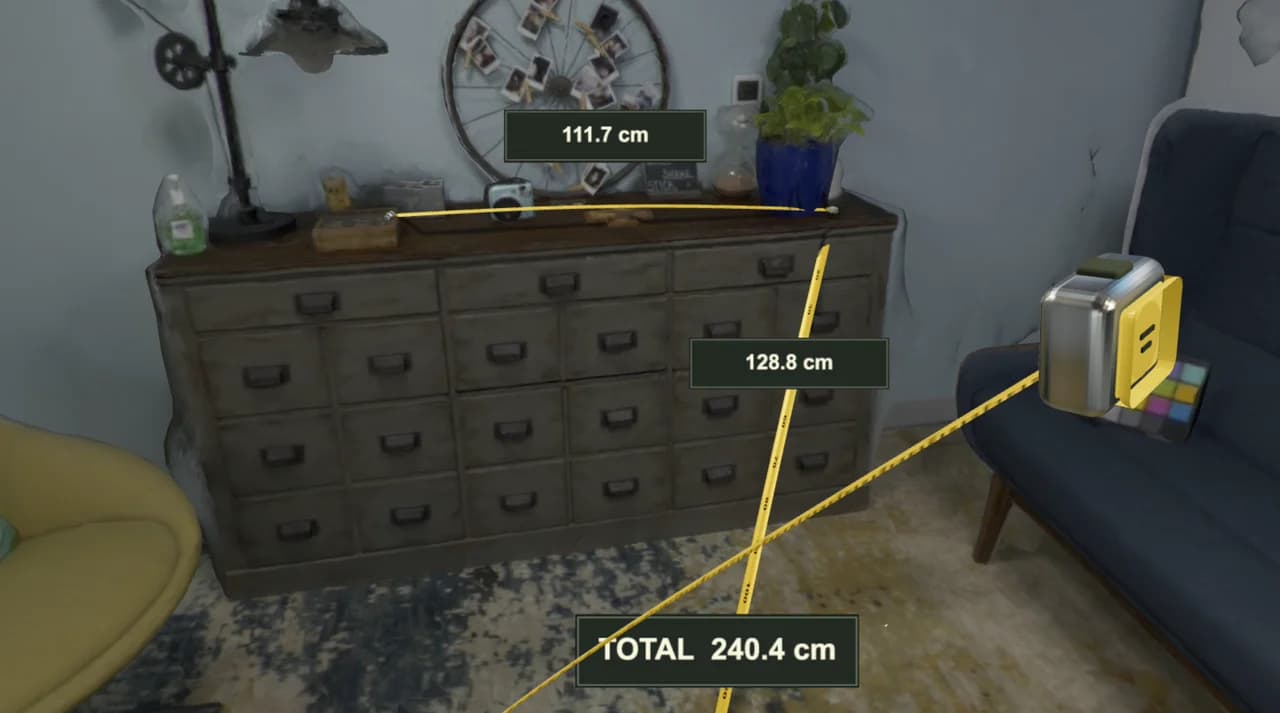
To put a virtual chair on a real floor, the app has to ask the device where the floor is. In WebXR that question is a hit test. This guide explains what it is, shows the plain API, and then a version in React Three Fiber that you can paste into a project.
What a hit test is
A hit test casts a ray into the device's understanding of the real world and returns the places where the ray meets a real surface. It is defined by the WebXR Hit Test Module.
It is not the raycasting you know from three.js. A three.js Raycaster tests your own meshes. A WebXR hit test knows nothing about your meshes. It tests against what the device has detected: planes, a room mesh, or depth points, depending on the device.
Each result gives you a pose, which is a position and an orientation. The specification defines the orientation so that the pose's Y axis points along the surface normal. On a floor, Y points up. On a wall, Y points out of the wall. That is what lets you lay a reticle flat on any surface.
What you need
- An
immersive-arsession. Hit testing is an AR feature. - The
hit-testfeature, requested when the session starts. Without it,requestHitTestSourcethrows. - A browser that implements it. Chrome on Android and the Meta Quest Browser do. At the time of writing, Safari on iPhone has no WebXR. Ask the browser with
isSessionSupportedand do not assume. - A secure page. WebXR works over HTTPS and on
localhost.
The plain API
The steps are: start a session, create a hit test source once, then read its results on every frame.
const session = await navigator.xr.requestSession('immersive-ar', {
  requiredFeatures: ['hit-test'],
})
const viewerSpace = await session.requestReferenceSpace('viewer')
const localSpace = await session.requestReferenceSpace('local')

// A ray that starts at the viewer and points where the viewer looks.
const hitTestSource = await session.requestHitTestSource({ space: viewerSpace })

function onFrame(time, frame) {
  session.requestAnimationFrame(onFrame)
  const results = frame.getHitTestResults(hitTestSource)
  if (results.length > 0) {
    // The nearest hit comes first.
    const pose = results[0].getPose(localSpace)
    // pose.transform.matrix is a 4x4 matrix: where the ray met the surface.
  }
}
session.requestAnimationFrame(onFrame)
Three things in this code matter:
- The source is created once.
requestHitTestSourcereturns a promise. Create the source after the session starts and keep it. Do not create one per frame. - Results are read per frame.
getHitTestResultsis synchronous and only valid inside the frame callback. - The space decides where the ray comes from. With
viewer, the ray leaves the centre of the view. That suits a phone, where you aim with the screen. On a headset you usually aim with a controller or a hand, so you pass that input source'stargetRaySpaceinstead.
You can also say what to test against with entityTypes: 'plane', 'point' or 'mesh'. The default is planes only.
A reticle in React Three Fiber
@react-three/xr wraps this in a hook. createXRStore requests the hit-test feature by default, so there is nothing to switch on.
This component shows a ring where the ray meets a surface, and places a small box there when you press the trigger, pinch, or tap the screen.
import { useRef, useState } from 'react'
import { Canvas } from '@react-three/fiber'
import { XR, createXRStore, useXRHitTest, useXRInputSourceEvent } from '@react-three/xr'
import { Matrix4 } from 'three'

const store = createXRStore()
const matrix = new Matrix4()

function Placer() {
  const reticle = useRef(null)
  const [placed, setPlaced] = useState([])

  // Runs every frame of the session with the latest results.
  useXRHitTest((results, getWorldMatrix) => {
    const ring = reticle.current
    if (!ring) return
    ring.visible = results.length > 0 && getWorldMatrix(matrix, results[0])
    if (ring.visible) matrix.decompose(ring.position, ring.quaternion, ring.scale)
  }, 'viewer')

  // "select" is the main action of any input: trigger, pinch or screen tap.
  useXRInputSourceEvent('all', 'select', () => {
    const ring = reticle.current
    if (!ring?.visible) return
    setPlaced((list) => [...list, { position: ring.position.clone(), quaternion: ring.quaternion.clone() }])
  }, [])

  return (
    <>
      <group ref={reticle} visible={false}>
        {/* A ring faces +Z. Turn it so it faces +Y, the surface normal. */}
        <mesh rotation-x={-Math.PI / 2}>
          <ringGeometry args={[0.04, 0.05, 32]} />
          <meshBasicMaterial color="white" />
        </mesh>
      </group>
      {placed.map((p, i) => (
        <group key={i} position={p.position} quaternion={p.quaternion}>
          {/* Lifted by half its height so it stands on the surface. */}
          <mesh position-y={0.05}>
            <boxGeometry args={[0.1, 0.1, 0.1]} />
            <meshStandardMaterial color="orange" />
          </mesh>
        </group>
      ))}
    </>
  )
}

export default function App() {
  return (
    <>
      <button onClick={() => store.enterAR()}>Enter AR</button>
      <Canvas>
        <XR store={store}>
          <ambientLight intensity={2} />
          <Placer />
        </XR>
      </Canvas>
    </>
  )
}
getWorldMatrix writes the hit pose into a three.js matrix in world coordinates and returns false if the pose is not available this frame. Decomposing that matrix into the group gives the reticle both its position and its tilt.
Aiming with a controller instead of the head
On a headset, a ray from the head is awkward. Give each controller its own hit test with the XRHitTest component, placed inside a custom controller:
import { DefaultXRController, XRHitTest, createXRStore, useXRInputSourceStateContext } from '@react-three/xr'

function ControllerWithHitTest() {
  const state = useXRInputSourceStateContext()
  return (
    <>
      <DefaultXRController />
      <XRHitTest
        space={state.inputSource.targetRaySpace}
        onResults={(results, getWorldMatrix) => {
          // The same callback as useXRHitTest.
        }}
      />
    </>
  )
}

const store = createXRStore({ controller: ControllerWithHitTest })
The same works for hands with the hand option.
Keeping an object where you put it
A hit result is true for one frame. As the device learns more about the room, its coordinate system shifts slightly, and an object placed at a fixed position can drift away from the real spot.
An anchor fixes that. The device keeps an anchor attached to the real place and updates its pose for you. You can create one straight from a hit result with XRHitTestResult.createAnchor(), if the session has the anchors feature. See the WebXR Anchors Module and the anchors tutorial for @react-three/xr.
For a short session in one room, a plain position is often good enough. For anything that must stay put for minutes, use an anchor.
When it does not work
- No results at first. The device needs to see the surface. On a phone, move it slowly from side to side. On a headset, the room may need to be set up first.
requestHitTestSourcethrows. The feature was not requested, or the device refused it. Ask for it as an optional feature and checksession.enabledFeaturesif your app can work without it.- The reticle stands upright on the floor. The pose is right and your mesh is not. Ring and plane geometries face +Z, and the surface normal is +Y.
- Results only on floors and tables. You are testing planes only. What else is available depends on the device.
- It works on the phone and not on the headset. Check which space the ray starts from.
Doing this in Graspable
In Graspable you can ask for this in a sentence, for example: "Build an AR measuring tape. I point at a surface, pull the trigger to place points, and see the length in centimetres." The agent writes code like the above into the project on your computer.
The useful part for hit testing is the preview. Its emulated headset stands in a synthetic room, so hit tests return real results and you can place things on the floor without putting a headset on. You can record that session and Graspable replays it after later changes. See Preview and headset and XR tests.
An emulated room is not your room. Before you rely on it, open the project on a real headset.
Sources
- WebXR Hit Test Module, W3C
- XRSession.requestHitTestSource(), XRFrame.getHitTestResults() and XRHitTestResult, MDN
- WebXR Anchors Module, Immersive Web Working Group
- Hit test tutorial, @react-three/xr